
Teams Voice Services Configuration
The configuration will be performed in Windows PowerShell.
You should have the .NET Framework add-on version 4.7.2 or later installed on your computer. If you don't have it, click the following link and install it: https://docs.microsoft.com/en-us/dotnet/framework/install/
Starting PowerShell
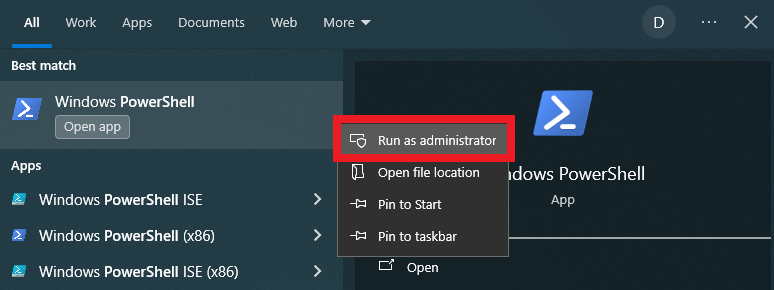
Checking the version of PowerShell
To make sure that you will be able to execute the commands described in the following sections, check the version of the PowerShell. Open PowerShell and enter the following command:
$PSVersionTable.PSVersion
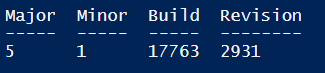
The PowerShell application should have version 5.1 (Major: 5, Minor: 1) or higher. If it is lower, update PowerShell according to the instructions on the following page:
If the version information does not appear after issuing the $PSVersionTable.PSVersion command, use the following command:
$host.Version.
Installing required modules
Install the required modules to properly configure the service. Individually copy the following commands highlighted in blue, paste them into PowerShell and execute by pressing Enter.
[Net.ServicePointManager]::SecurityProtocol = [Net.SecurityProtocolType]::Tls12
Register-PSRepository -Default
Install-Module -Name PowerShellGet -Force -AllowClobber
Install-Module -Name MicrosoftTeams -Force -AllowClobber
Update-Module MicrosoftTeams
Set-ExecutionPolicy RemoteSigned
Import-Module -Name MicrosoftTeams
Set-ExecutionPolicy Restricted
Logging in to the tenant in the MS Teams organization
Copy the following command, paste it into the PowerShell and execute by pressing Enter.
Connect-MicrosoftTeams
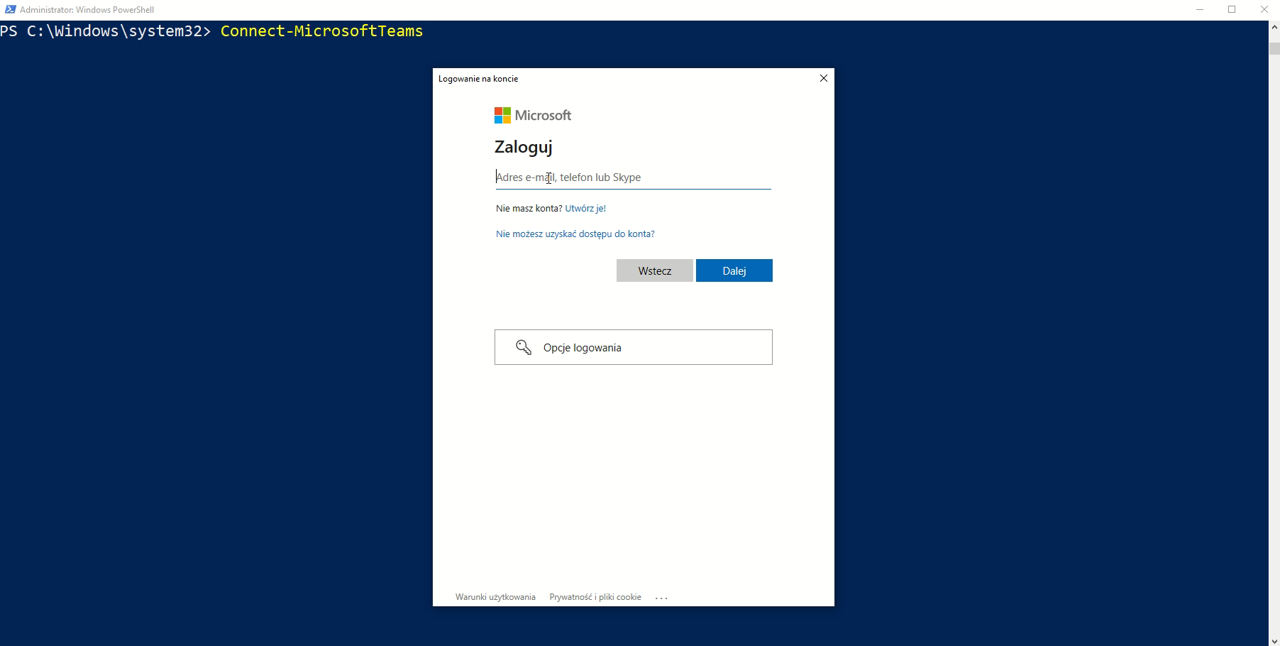
Log in with a user account with administrator privileges in the tenant. The account with administrator privileges is the one used to create the new domain in the Adding a New Domain to the Microsoft 365 Administration Center instructions.
Configuring routing for phone calls
Individually copy the following commands highlighted in blue, paste them into PowerShell and execute by pressing Enter.
Set-CsOnlinePstnUsage -Identity Global -Usage @{Add="TMobileRouting"}
Set-CsOnlineVoiceRoutingPolicy -Identity Global -OnlinePSTNUsages "TMobileRouting"
In the last command, the domain T10012345.teams.t-mobile.pl should be replaced with the one that was assigned by T-Mobile.
New-CsOnlineVoiceRoute -Identity "TMobileRouting“ -NumberPattern ".*" -OnlinePstnGatewayList T10012345.teams.t-mobile.pl -Priority 1 -OnlinePstnUsages "TMobileRouting"
Do not close PowerShell it will be needed in the next instruction.
After successfully executing this command, you can proceed to the next instruction.