Assigning Phone Numbers to User Accounts
The final step in configuring Numer w Teams service is connecting users to the phone numbers provided by T-Mobile. Assigning numbers to a specific user or multiple users is done using commands executed in PowerShell.
Single User Configuration
Run the following command, changing uzytkownik@domenafirmowa.pl to the username of the user who should be assigned the phone number provided by T-Mobile, which you should insert in place of +48000000000.
Set-CsPhoneNumberAssignment -Identity uzytkownik@domenafirmowa.pl -PhoneNumber +48000000000 -PhoneNumberType DirectRouting
Multiple Users Configuration
To configure multiple users at once , prepare a CSV file (comma-separated value text file) containing the user names and phone numbers you want to assign to them. The file should be created according to the format below.
Email,Phone
uzytkownika@domenafirmowa.pl,+48000000000
uzytkownika@domenafirmowa.pl,+48000000000
uzytkownika@domenafirmowa.pl,+48000000000
Replace uzytkownik@domenafirmowa.pl with the actual usernames of the users you want to assign phone numbers to. Replace +48000000000 with the corresponding T-Mobile phone numbers. Add more rows to the file following the same format for each additional user you want to configure.
Finished file should look like this:
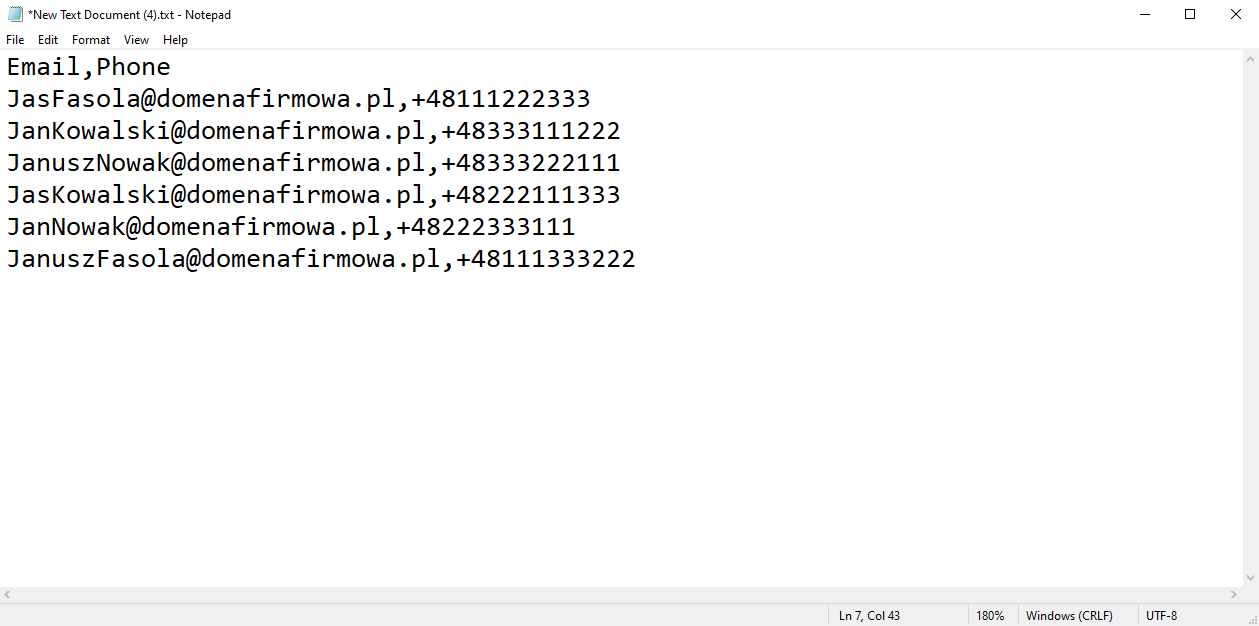
Before saving the file, make sure that the phone numbers have the correct format. The number should start with a "+" sign followed by 11 digits, starting with 48. An example number is: +48123456789.
Save the file with the name Voice.CSV (Voice is the filename and CSV is the file extension).
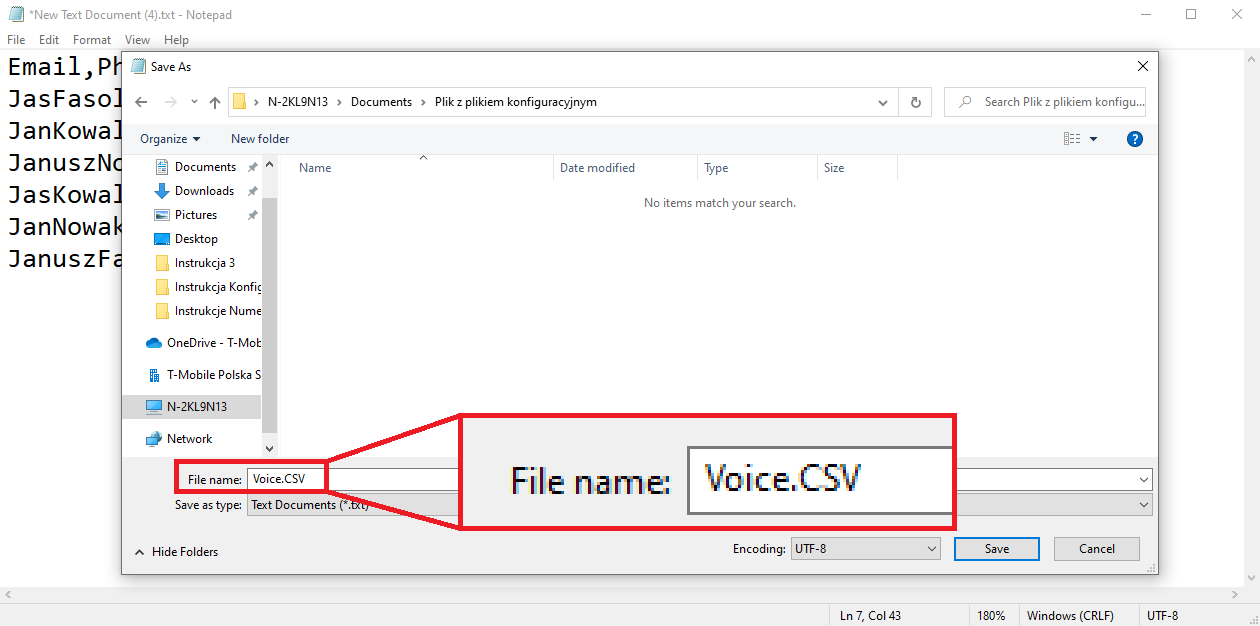
Next, open the file location, right-click on the file, select Properties and copy the file location.
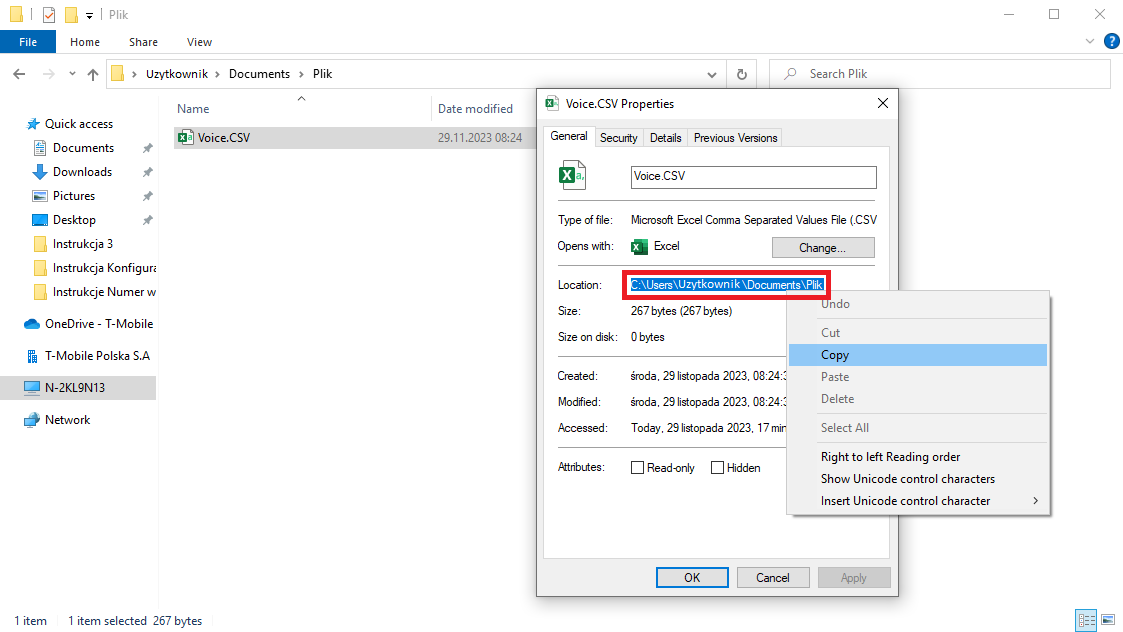
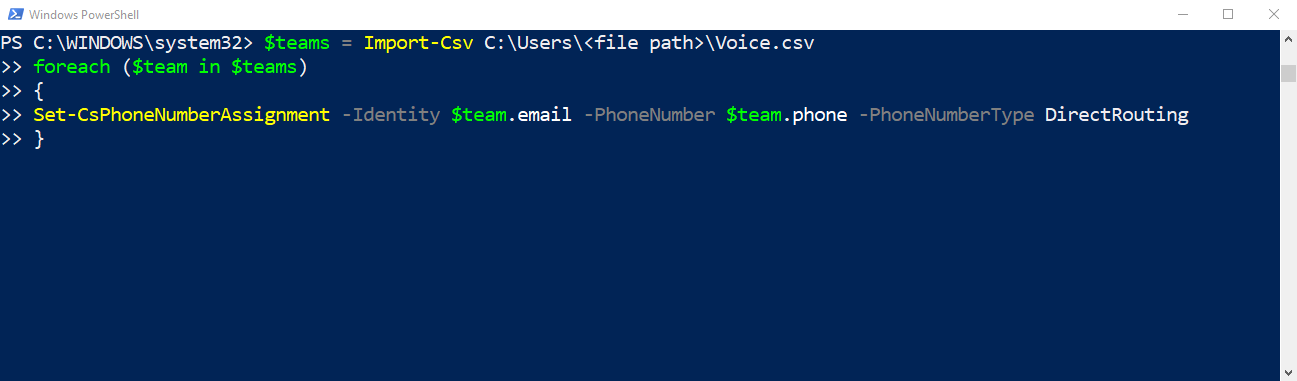
In the following command, replace C:\Users\<file path> with the value you copied earlier. Then, execute it in PowerShell.
$teams = Import-Csv C:\Users\<file path>\Voice.csv
foreach ($team in $teams)
{
Set-CsPhoneNumberAssignment -Identity $team.email -PhoneNumber $team.phone -PhoneNumberType DirectRouting
}
Once the configuration is complete, it is possible to make phone calls in the MS Teams application. To do this, log into the account of a user to whom you have assigned a phone number and who has a license with the Teams Phone add-on.