# Microsoft Teams Operator Connect


# How to Order Microsoft Teams Operator Connect from T-Mobile

The process for ordering the <span style="color: rgb(226, 0, 116);"><span style="color: rgb(0, 0, 0);"><span style="color: rgb(57, 57, 57);"><span style="color: rgb(226, 0, 116);"><span style="color: rgb(0, 0, 0);"><span style="color: rgb(57, 57, 57);">**Microsoft Teams** </span></span></span>**Operator Connect**</span></span></span> service is described below. You will learn where and how to submit a form to express your interest in purchasing the service and provide us with the required information, when our sales representative will contact you, and how the service will be activated once the order has been finalized.

If you do not have **Microsoft Teams** and **Microsoft Teams Phone Standard**, visit our <span style="color: rgb(226, 0, 116);">*[Microsoft 365 for Business - T-Mobile Business Poland ](https://biznes.t-mobile.pl/pl/produkty-i-uslugi/modern-workplace/microsoft-365)*<span style="color: rgb(54, 54, 54);">website or contact your account manager.</span></span>

To start the process, submit the form through the <span style="color: rgb(57, 57, 57);">**<span class="hpyHhmSe9hmk5gopLr9a5Q==">Microsoft Teams admin center.</span>**</span>

### **Teams admin center**

1. <span style="mso-ansi-language: PL;">Sign in with an administrator account to the </span><span style="color: rgb(57, 57, 57);">**<span class="hpyHhmSe9hmk5gopLr9a5Q==">Microsoft Teams admin center </span>**<span class="hpyHhmSe9hmk5gopLr9a5Q==">(</span></span><span style="mso-ansi-language: PL;">Teams admin center): <span style="color: rgb(226, 0, 116);">*[https://admin.teams.microsoft.com](https://admin.teams.microsoft.com/)*[<span style="color: rgb(0, 0, 0);">.</span>](https://admin.teams.microsoft.com/)</span></span><div class="M3pcB5evSAtYMozck1WU7A==" id="bkmrk--2"></div>
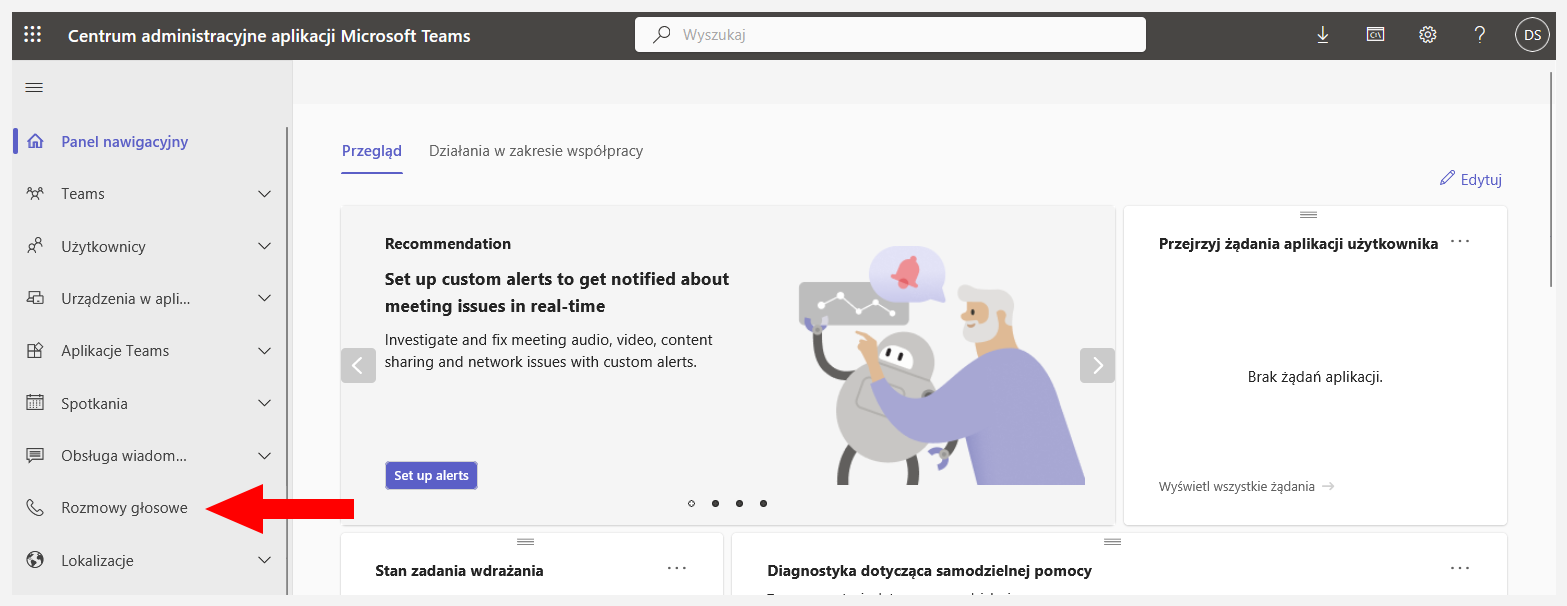
2. <span style="mso-ansi-language: PL;"><span style="color: rgb(226, 0, 116);"><span style="color: rgb(0, 0, 0);">In the left-hand menu, go to **Voice**.</span></span></span><span style="mso-ansi-language: PL;"><span style="color: rgb(226, 0, 116);"><span style="color: rgb(0, 0, 0);">[![SOy14246953-t-business-mailing-dla-uslugi-numer-w-teams-aktualizacja3.png](https://bookstack.uc.t-mobile.pl/uploads/images/gallery/2024-07/scaled-1680-/soy14246953-t-business-mailing-dla-uslugi-numer-w-teams-aktualizacja3.png)](https://bookstack.uc.t-mobile.pl/uploads/images/gallery/2024-07/soy14246953-t-business-mailing-dla-uslugi-numer-w-teams-aktualizacja3.png)</span></span></span>
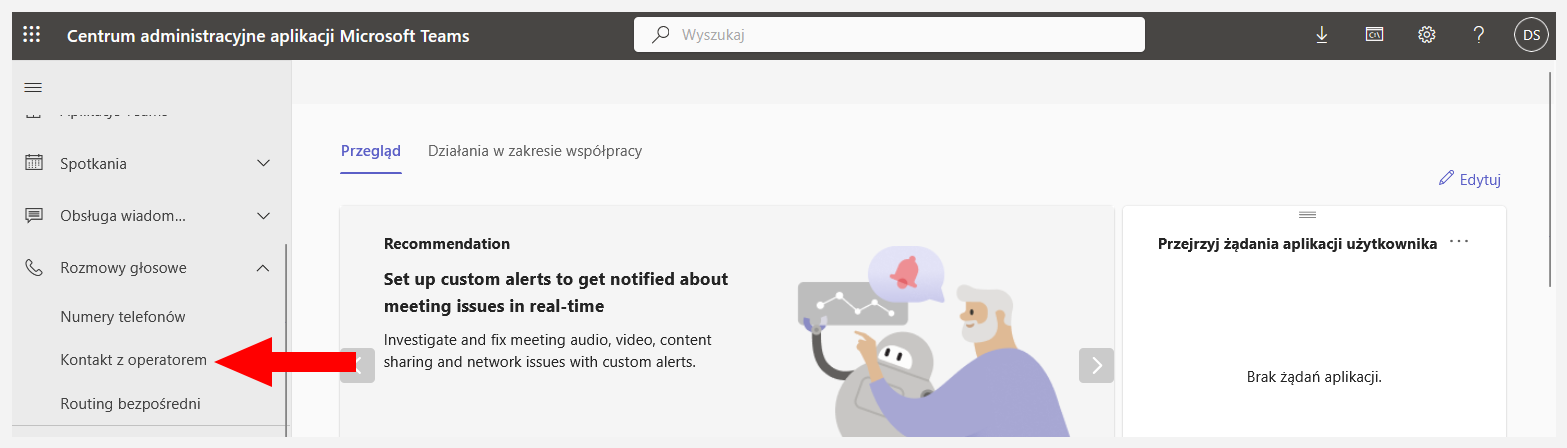
3. <span style="mso-ansi-language: PL;"><span style="color: rgb(226, 0, 116);"><span style="color: rgb(0, 0, 0);">Then select **Operator Connect**.</span></span></span>[![Micimage.png](https://bookstack.uc.t-mobile.pl/uploads/images/gallery/2024-07/scaled-1680-/owzmicimage.png)](https://bookstack.uc.t-mobile.pl/uploads/images/gallery/2024-07/owzmicimage.png)
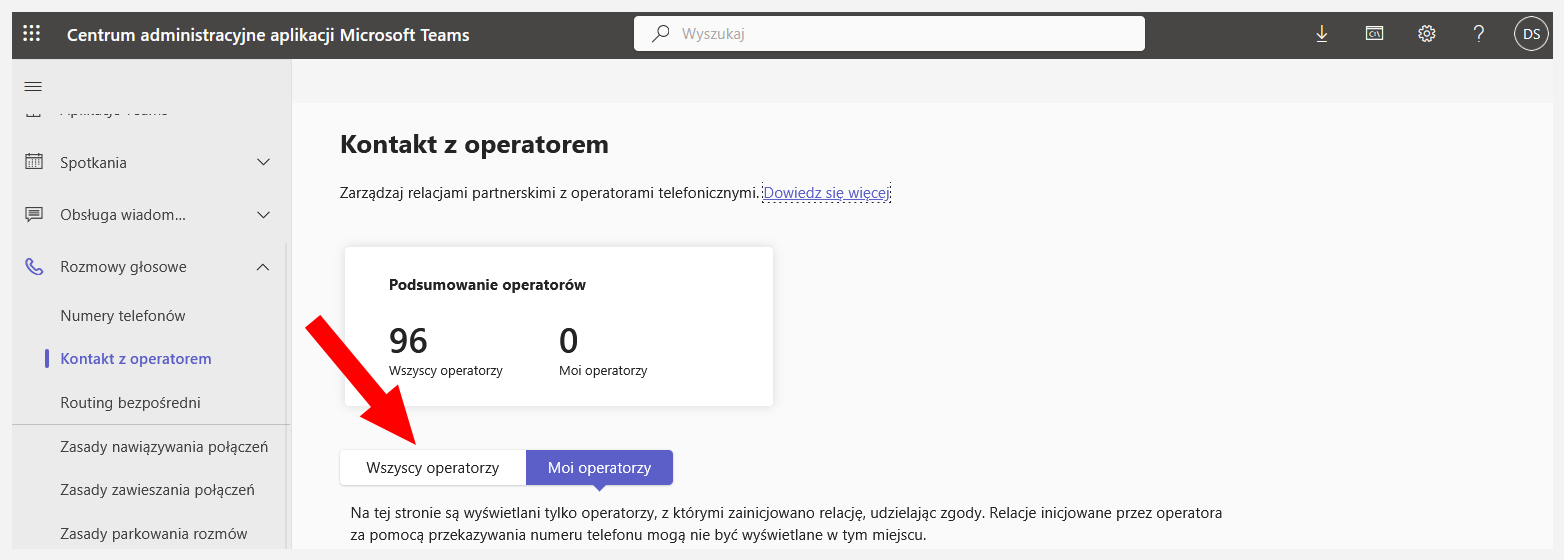
4. <span style="mso-ansi-language: PL;"><span style="color: rgb(226, 0, 116);"><span style="color: rgb(0, 0, 0);">Select the **All operators** tab.</span></span></span>[![VZElcLimage.png](https://bookstack.uc.t-mobile.pl/uploads/images/gallery/2024-07/scaled-1680-/74mvzelclimage.png)](https://bookstack.uc.t-mobile.pl/uploads/images/gallery/2024-07/74mvzelclimage.png)
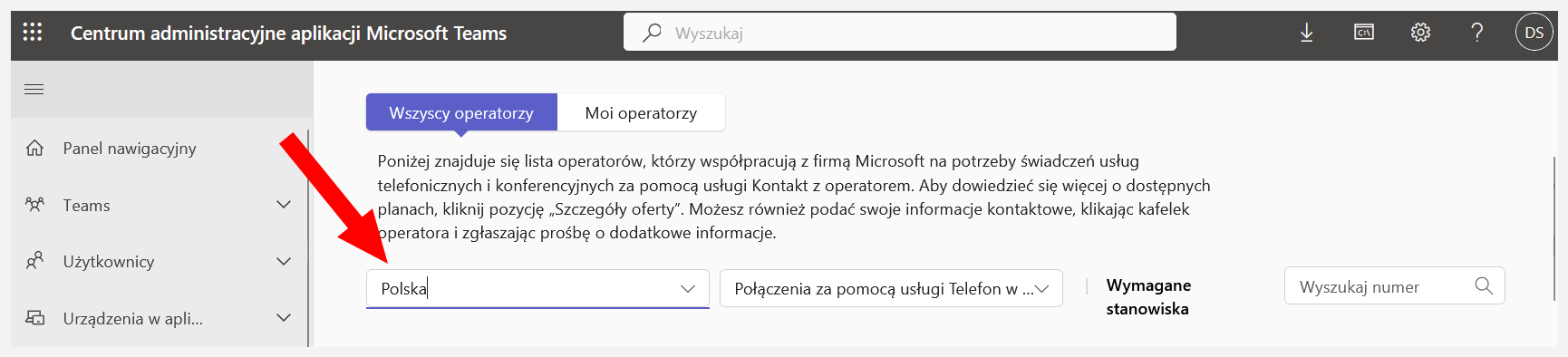
5. <span style="mso-ansi-language: PL;">Display the operators available in </span>**<span style="mso-ansi-language: PL;">Poland.</span>**[![jgTimage.png](https://bookstack.uc.t-mobile.pl/uploads/images/gallery/2024-07/scaled-1680-/XCQjgtimage.png)](https://bookstack.uc.t-mobile.pl/uploads/images/gallery/2024-07/XCQjgtimage.png)
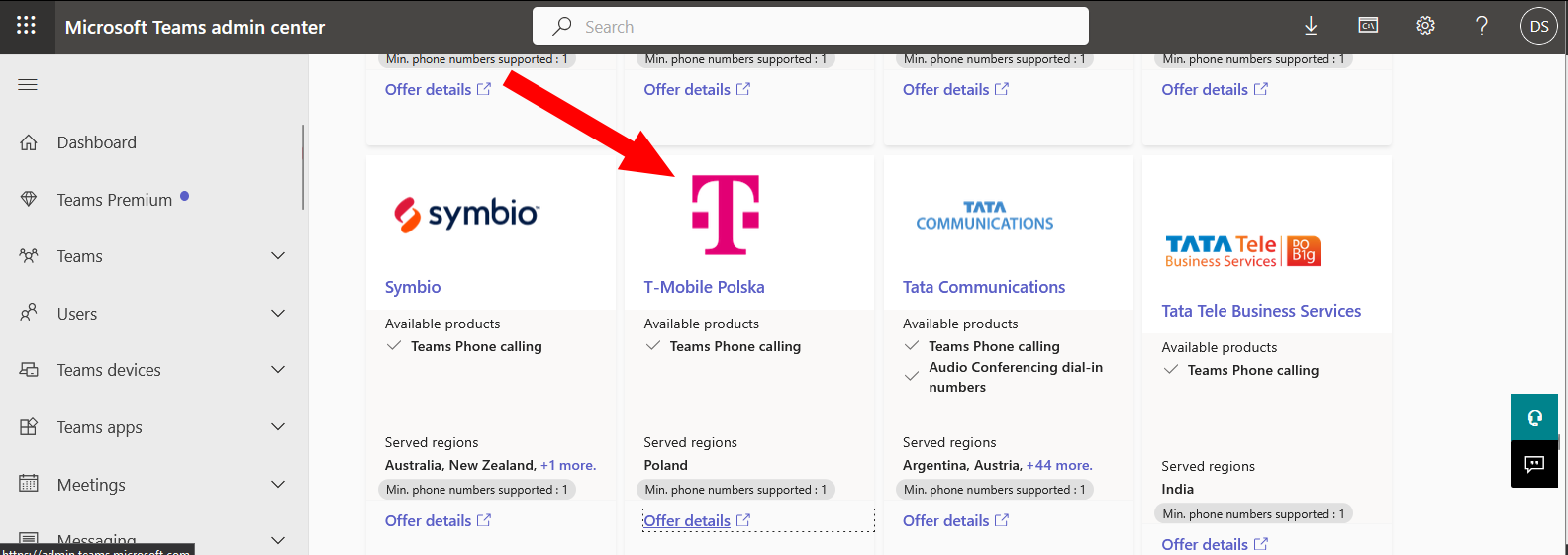
6. <span style="mso-ansi-language: PL;"><span style="color: rgb(226, 0, 116);"><span style="color: rgb(0, 0, 0);">Find **T-Mobile Polska** in the list of operators and select it.</span></span></span>[![obraz.png](https://bookstack.uc.t-mobile.pl/uploads/images/gallery/2025-08/scaled-1680-/0uIobraz.png)](https://bookstack.uc.t-mobile.pl/uploads/images/gallery/2025-08/0uIobraz.png)
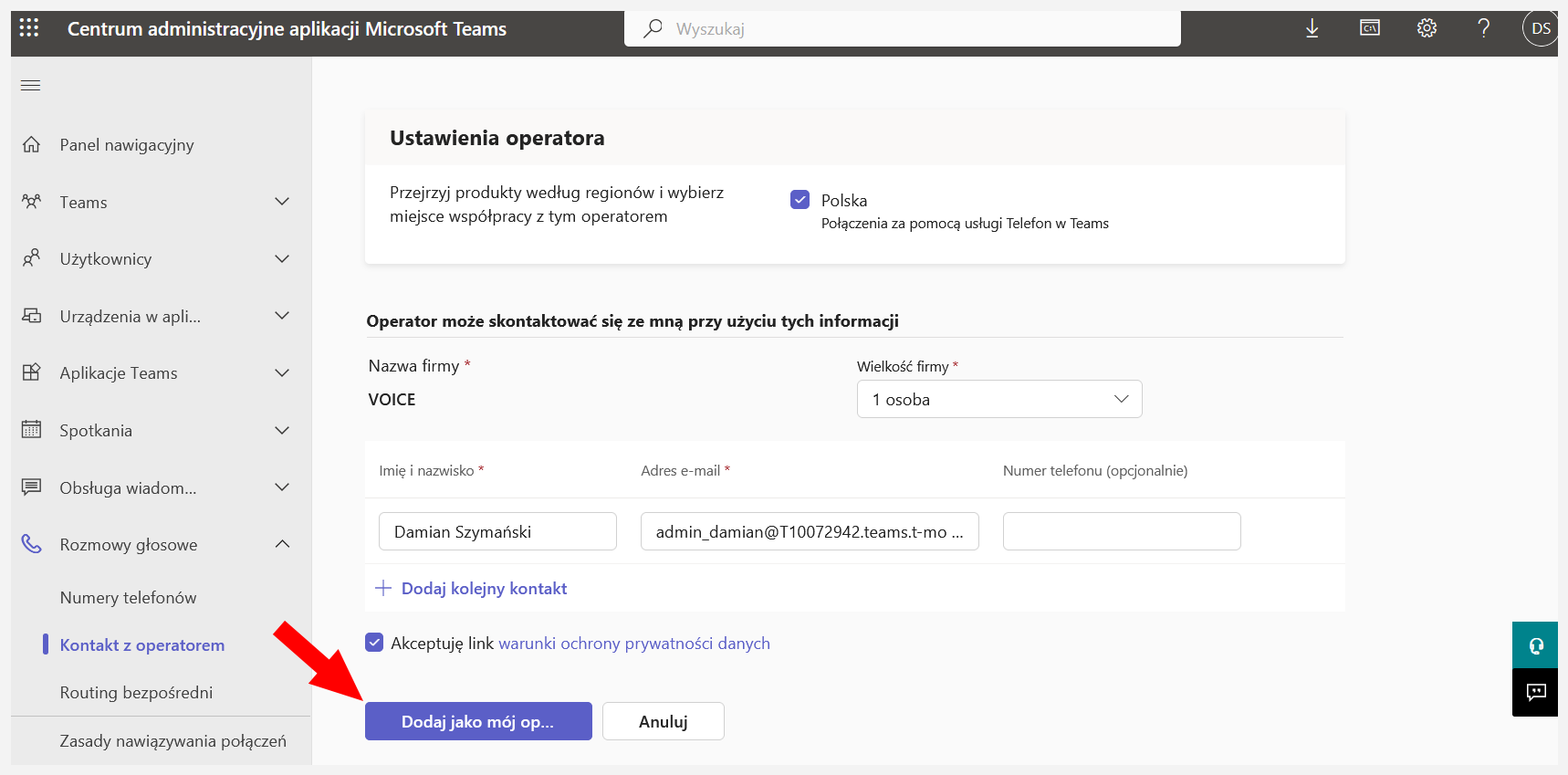
7. <span style="mso-ansi-language: PL;">Complete the information on the page:</span>
    - <span style="mso-ansi-language: PL;"><span style="color: rgb(57, 57, 57);"><span class="hpyHhmSe9hmk5gopLr9a5Q==">select the country where the service will be provided,</span></span></span>
    - <span style="mso-ansi-language: PL;"><span style="color: rgb(57, 57, 57);"><span class="hpyHhmSe9hmk5gopLr9a5Q==">select your organization size,</span></span></span>
    - <span style="mso-ansi-language: PL;"><span style="color: rgb(57, 57, 57);"><span class="hpyHhmSe9hmk5gopLr9a5Q==">complete the contact form,</span></span></span>
    - <span style="mso-ansi-language: PL;"><span style="color: rgb(57, 57, 57);"><span class="hpyHhmSe9hmk5gopLr9a5Q==">accept the privacy settings.</span></span></span>
8. <span style="mso-ansi-language: PL;"><span style="color: rgb(226, 0, 116);"><span style="color: rgb(0, 0, 0);"><span style="color: rgb(226, 0, 116);"><span style="color: rgb(0, 0, 0);">Then submit the form by selecting **Add as my operator**.</span></span></span></span></span>[![pNYimage.png](https://bookstack.uc.t-mobile.pl/uploads/images/gallery/2024-07/scaled-1680-/607pnyimage.png)](https://bookstack.uc.t-mobile.pl/uploads/images/gallery/2024-07/607pnyimage.png)<span style="mso-ansi-language: PL;"><span style="color: rgb(226, 0, 116);"><span style="color: rgb(0, 0, 0);"><span style="color: rgb(226, 0, 116);"><span style="color: rgb(0, 0, 0);">After the form has been submitted, you will receive a confirmation email acknowledging receipt of your request. Then wait for **T-Mobile** to contact you. </span></span></span></span></span>

### **Contact with T-Mobile**

After the contact form has been submitted through the <span style="color: rgb(57, 57, 57);">**<span class="hpyHhmSe9hmk5gopLr9a5Q==">Microsoft Teams admin center, </span>**<span class="hpyHhmSe9hmk5gopLr9a5Q==">our sales representative will contact the person specified in the form. You will then receive our offer, after which the details of the agreement and service configuration will be determined. The key elements of this process will include:</span></span>

- <span style="color: rgb(57, 57, 57);"><span class="hpyHhmSe9hmk5gopLr9a5Q=="><span style="mso-ansi-language: PL;">Assigning phone numbers from the T-Mobile number pool or porting them from another service or operator.</span></span></span>
- <span style="color: rgb(57, 57, 57);"><span class="hpyHhmSe9hmk5gopLr9a5Q=="><span style="mso-ansi-language: PL;">Selecting a tariff for phone calls.</span></span></span>
- <span style="color: rgb(57, 57, 57);"><span class="hpyHhmSe9hmk5gopLr9a5Q=="><span style="mso-ansi-language: PL;">Determining the service activation date, which depends on the number of phone numbers and whether they are being ported from another operator.</span></span></span>

### **Service configuration**

The service is activated automatically. The customer only needs to assign phone numbers to user accounts in **Microsoft Teams**. This process is completed in the <span style="color: rgb(57, 57, 57);">**<span class="hpyHhmSe9hmk5gopLr9a5Q==">Microsoft Teams admin center </span>**<span class="hpyHhmSe9hmk5gopLr9a5Q==">(</span></span><span style="mso-ansi-language: PL;">Teams admin center)</span> and is described in the following guide: <span style="color: rgb(226, 0, 116);">*[Assigning phone numbers to Microsoft Teams user accounts](https://info.biznes.t-mobile.pl/books/numer-w-teams/page/przypisanie-numerow-telefonicznych-do-kont-uzytkownikow-microsoft-teams)*<span style="color: rgb(0, 0, 0);">. </span></span>

# Znalezienie Tenant ID swojej organizacji w usłudze Microsoft

Jak znaleźć **<span style="color: rgb(226, 0, 116);">Tenant ID </span>**<span style="color: rgb(54, 54, 54);">(pol. **Identyfikator dzierżawczy**)</span> swojej usługi **Microsoft,** potrzebny do konfiguracji usługi **Teams Operators Connect.** Poniżej znajdują się instrukcje znalezienia **Tenant ID** poprzez:  
<span style="color: rgb(226, 0, 116);">◼</span> **Microsoft Entra admin center  
<span style="color: rgb(226, 0, 116);">◼</span> Portal Azure**

#### **Microsoft Entra admin center**

<span style="color: rgb(226, 0, 116);">**1.** <span style="color: rgb(54, 54, 54);">Zaloguj się do **Microsft Entra admin center** (<span style="color: rgb(226, 0, 116);">*[Microsoft Entra admin center](https://entra.microsoft.com/)*</span>) kontem, które przynajmniej ma uprawnienia **Czytelnika globalnego** (<span style="color: rgb(226, 0, 116);">*[Global Reader](https://learn.microsoft.com/en-us/entra/identity/role-based-access-control/permissions-reference#global-reader)*</span>). </span></span>

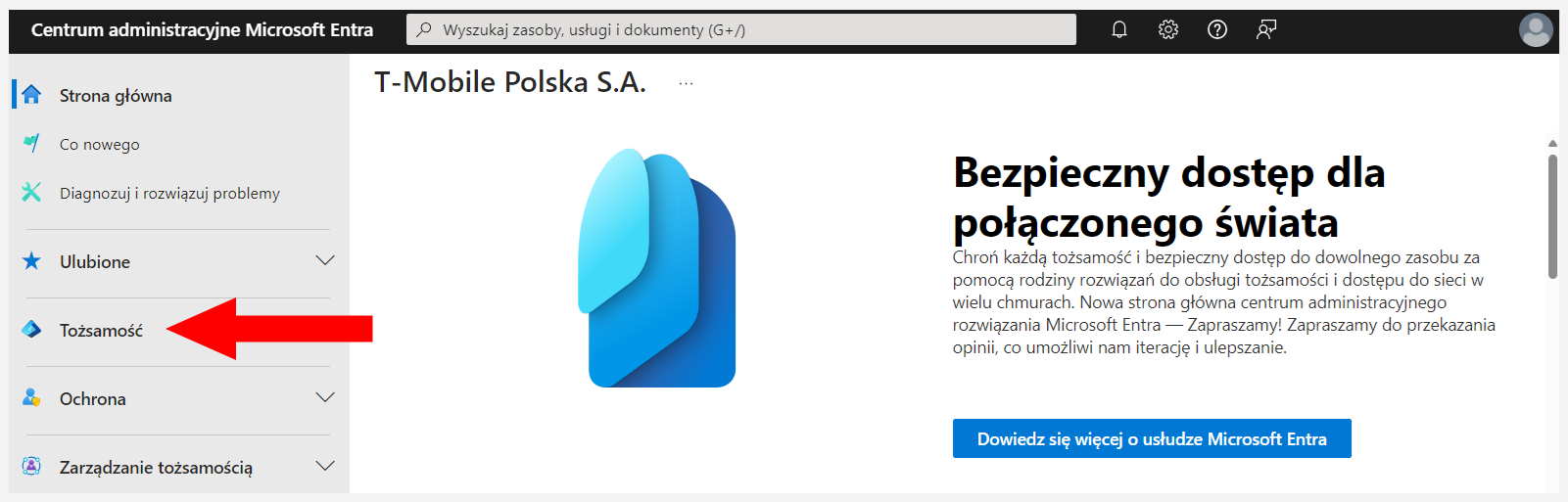
<span style="color: rgb(226, 0, 116);"><span style="color: rgb(0, 0, 0);"><span style="color: rgb(226, 0, 116);">**2.** <span style="color: rgb(54, 54, 54);">W menu po lewej stronie</span> <span style="color: rgb(54, 54, 54);">rozwiń sekcję **Tożsamość** (Identity).</span></span></span></span>

[![3o5image.png](https://bookstack.uc.t-mobile.pl/uploads/images/gallery/2024-07/scaled-1680-/3o5image.png)](https://bookstack.uc.t-mobile.pl/uploads/images/gallery/2024-07/3o5image.png)

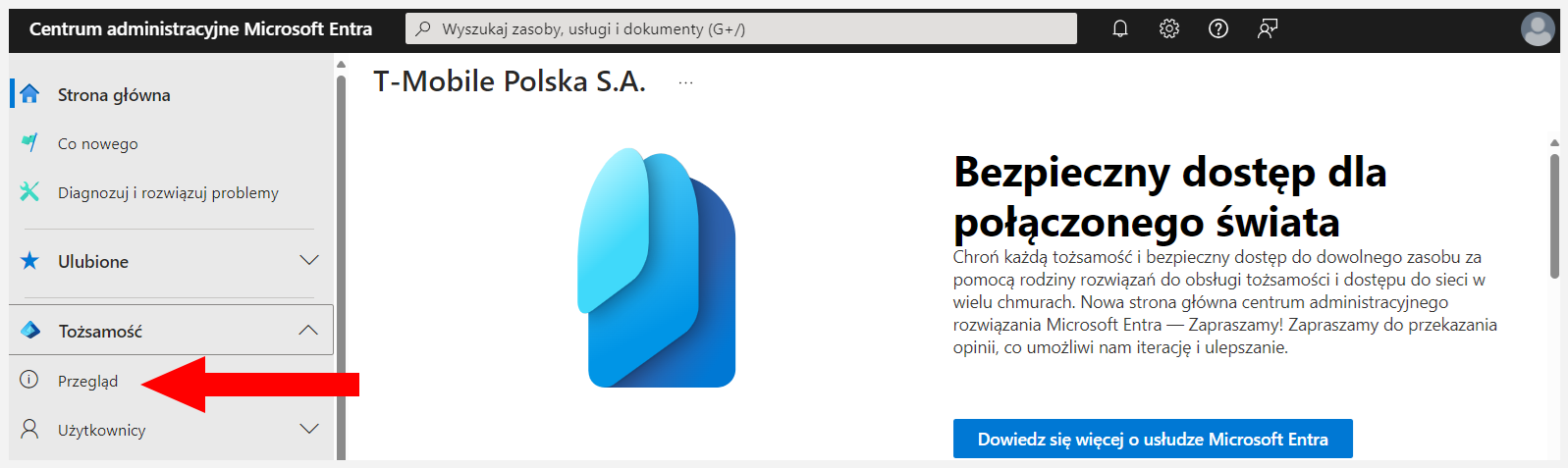
<span style="color: rgb(226, 0, 116);"><span style="color: rgb(0, 0, 0);"><span style="color: rgb(226, 0, 116);"><span style="color: rgb(54, 54, 54);"><span style="color: rgb(226, 0, 116);"><span style="color: rgb(0, 0, 0);"><span style="color: rgb(226, 0, 116);">**3.** <span style="color: rgb(54, 54, 54);">Wybierz opcję **Przegląd** (Overview).</span></span></span></span></span></span></span></span>

[![Sm1image.png](https://bookstack.uc.t-mobile.pl/uploads/images/gallery/2024-07/scaled-1680-/sm1image.png)](https://bookstack.uc.t-mobile.pl/uploads/images/gallery/2024-07/sm1image.png)

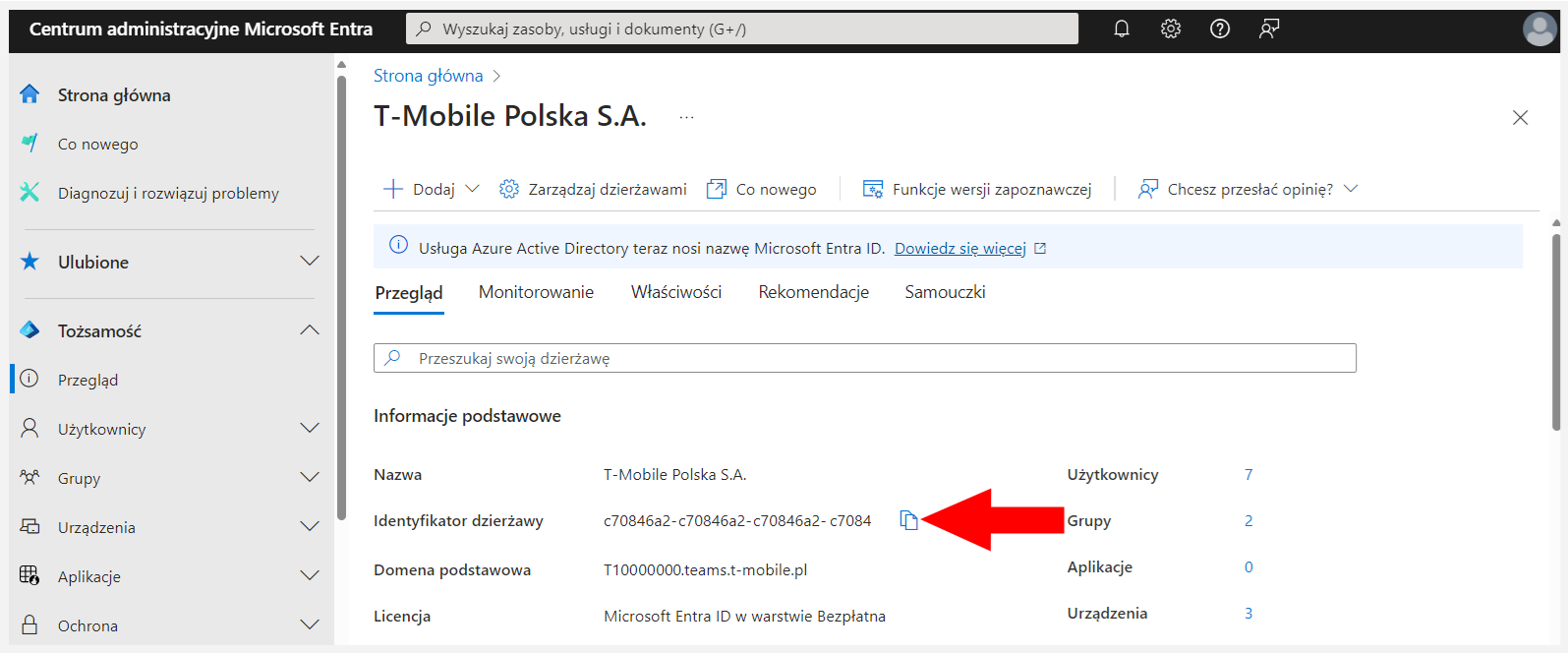
<span style="color: rgb(226, 0, 116);"><span style="color: rgb(0, 0, 0);"><span style="color: rgb(226, 0, 116);"><span style="color: rgb(54, 54, 54);"><span style="color: rgb(226, 0, 116);"><span style="color: rgb(0, 0, 0);"><span style="color: rgb(226, 0, 116);"><span style="color: rgb(54, 54, 54);"><span style="color: rgb(226, 0, 116);"><span style="color: rgb(0, 0, 0);"><span style="color: rgb(226, 0, 116);"><span style="color: rgb(54, 54, 54);"><label class="ms-Label propertyItemLabelStyle-163" for="PropertyItem73">**<span style="color: rgb(226, 0, 116);">4. <span style="color: rgb(0, 0, 0);"><span style="color: rgb(226, 0, 116);"><span style="color: rgb(54, 54, 54);"><span style="color: rgb(226, 0, 116);"><span style="color: rgb(0, 0, 0);"><span style="color: rgb(226, 0, 116);"><span style="color: rgb(54, 54, 54);">Tenant ID</span></span></span></span></span></span></span></span>**<span style="color: rgb(226, 0, 116);"><span style="color: rgb(0, 0, 0);"><span style="color: rgb(226, 0, 116);"><span style="color: rgb(54, 54, 54);"><span style="color: rgb(226, 0, 116);"><span style="color: rgb(0, 0, 0);"><span style="color: rgb(226, 0, 116);"><span style="color: rgb(54, 54, 54);"> (</span></span></span></span></span></span></span><span style="color: rgb(56, 55, 56);">pol. Identyfikator dzierżawczy</span><span style="color: rgb(0, 0, 0);"><span style="color: rgb(226, 0, 116);"><span style="color: rgb(54, 54, 54);"><span style="color: rgb(226, 0, 116);"><span style="color: rgb(0, 0, 0);"><span style="color: rgb(226, 0, 116);"><span style="color: rgb(54, 54, 54);">) </span></span></span></span></span></span></span></span><span style="color: rgb(226, 0, 116);"><span style="color: rgb(0, 0, 0);"><span style="color: rgb(226, 0, 116);"><span style="color: rgb(54, 54, 54);"><span style="color: rgb(226, 0, 116);"><span style="color: rgb(0, 0, 0);"><span style="color: rgb(226, 0, 116);"><span style="color: rgb(54, 54, 54);">znajduje się w zakładce **Informacje podstawowe.**</span></span></span></span></span></span></span></span></label></span></span></span></span></span></span></span></span></span></span></span></span>

[![ys3image.png](https://bookstack.uc.t-mobile.pl/uploads/images/gallery/2024-07/scaled-1680-/ys3image.png)](https://bookstack.uc.t-mobile.pl/uploads/images/gallery/2024-07/ys3image.png)

#### **Portal Azure**

<span style="color: rgb(226, 0, 116);">**1.** <span style="color: rgb(54, 54, 54);">Zaloguj się do **Microsoft Entra admin center** (*<span style="color: rgb(226, 0, 116);">[Azure portal](https://portal.azure.com/)</span>*).</span></span>

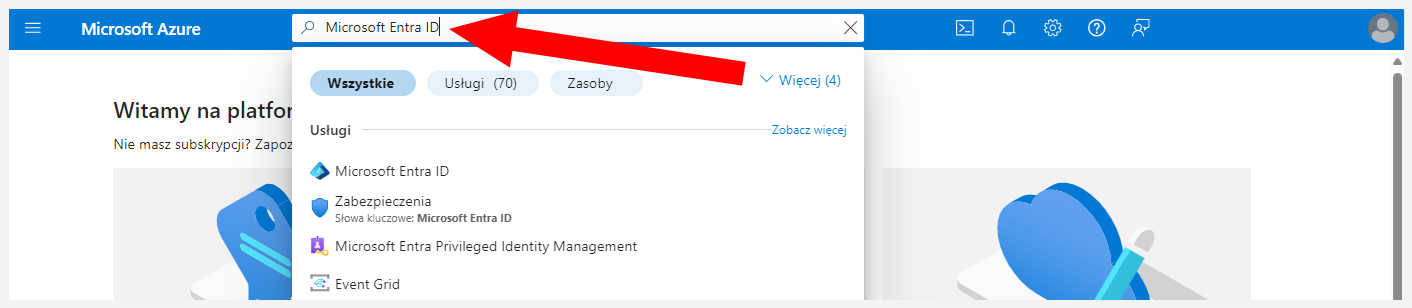
<span style="color: rgb(226, 0, 116);"><span style="color: rgb(0, 0, 0);"><span style="color: rgb(226, 0, 116);">**2.** <span style="color: rgb(54, 54, 54);">Wyszukaj i przejdź do usługi</span>**<span style="color: rgb(54, 54, 54);"> Microsoft Entra ID</span>**<span style="color: rgb(54, 54, 54);">.</span></span></span></span>

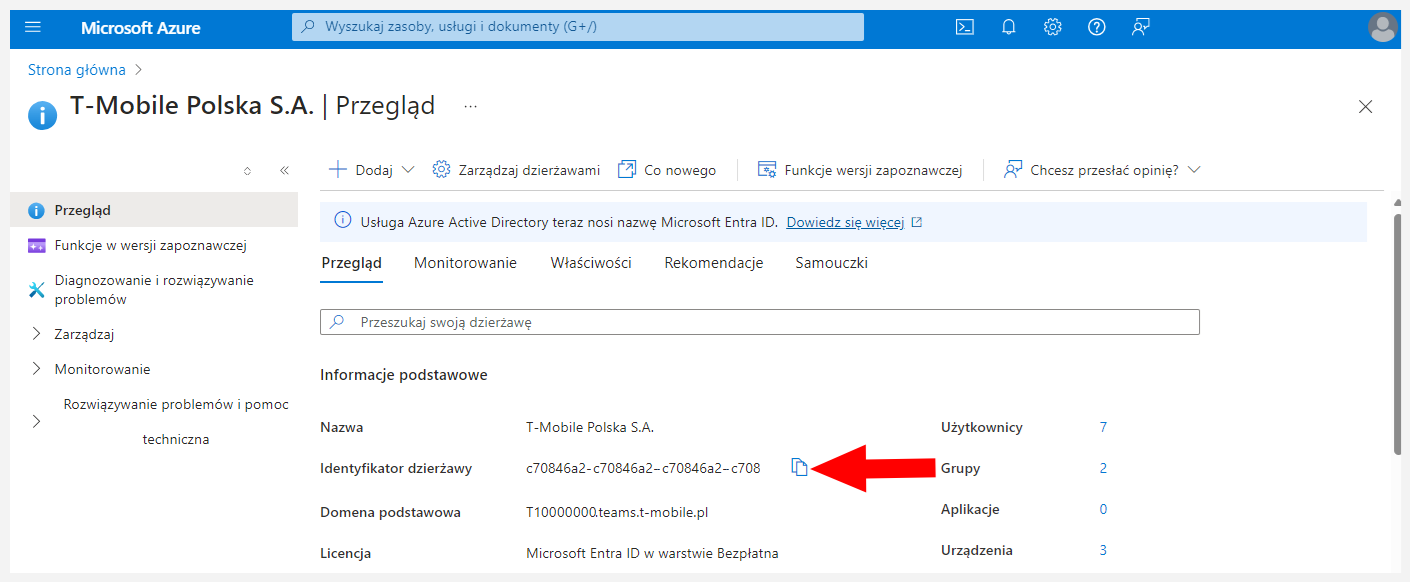
[![uAQimage.png](https://bookstack.uc.t-mobile.pl/uploads/images/gallery/2024-07/scaled-1680-/uaqimage.png)](https://bookstack.uc.t-mobile.pl/uploads/images/gallery/2024-07/uaqimage.png)

<span style="color: rgb(226, 0, 116);"><span style="color: rgb(0, 0, 0);"><span style="color: rgb(226, 0, 116);"><span style="color: rgb(54, 54, 54);"><span style="color: rgb(226, 0, 116);"><span style="color: rgb(0, 0, 0);"><span style="color: rgb(226, 0, 116);"><span style="color: rgb(54, 54, 54);"><span style="color: rgb(226, 0, 116);"><span style="color: rgb(0, 0, 0);"><span style="color: rgb(226, 0, 116);"><span style="color: rgb(54, 54, 54);">**<span style="color: rgb(226, 0, 116);"><span style="color: rgb(0, 0, 0);"><span style="color: rgb(226, 0, 116);"><span style="color: rgb(54, 54, 54);"><span style="color: rgb(226, 0, 116);"><span style="color: rgb(0, 0, 0);"><span style="color: rgb(226, 0, 116);"><span style="color: rgb(54, 54, 54);"><span style="color: rgb(226, 0, 116);"><span style="color: rgb(0, 0, 0);"><span style="color: rgb(226, 0, 116);"><span style="color: rgb(54, 54, 54);"><span style="color: rgb(226, 0, 116);">3. </span>Tenant ID </span></span></span></span></span></span></span></span></span></span></span></span>**<span style="color: rgb(226, 0, 116);"><span style="color: rgb(0, 0, 0);"><span style="color: rgb(226, 0, 116);"><span style="color: rgb(54, 54, 54);"><span style="color: rgb(226, 0, 116);"><span style="color: rgb(0, 0, 0);"><span style="color: rgb(226, 0, 116);"><span style="color: rgb(54, 54, 54);"><span style="color: rgb(226, 0, 116);"><span style="color: rgb(0, 0, 0);"><span style="color: rgb(226, 0, 116);"><span style="color: rgb(54, 54, 54);">(pol. Identyfikator dzierżawczy) znajduje się w zakładce </span></span></span></span></span></span></span></span></span></span></span></span>**<span style="color: rgb(226, 0, 116);"><span style="color: rgb(0, 0, 0);"><span style="color: rgb(226, 0, 116);"><span style="color: rgb(54, 54, 54);"><span style="color: rgb(226, 0, 116);"><span style="color: rgb(0, 0, 0);"><span style="color: rgb(226, 0, 116);"><span style="color: rgb(54, 54, 54);"><span style="color: rgb(226, 0, 116);"><span style="color: rgb(0, 0, 0);"><span style="color: rgb(226, 0, 116);"><span style="color: rgb(54, 54, 54);">Informacje podstawowe.</span></span></span></span></span></span></span></span></span></span></span></span>**</span></span></span></span></span></span></span></span></span></span></span></span>

[![fAEimage.png](https://bookstack.uc.t-mobile.pl/uploads/images/gallery/2024-07/scaled-1680-/faeimage.png)](https://bookstack.uc.t-mobile.pl/uploads/images/gallery/2024-07/faeimage.png)

<div class="ms-Shimmer-container shimmerContainerStyle-165" elementtiming="530" id="bkmrk--6"><div class="ms-Shimmer-dataWrapper dataWrapper-234" elementtiming="529">  
</div></div>

# Przypisanie numerów telefonicznych do kont użytkowników Microsoft Teams

Instrukcja przypisania **Numerów telefonicznych** do użytkowników **Microsoft Teams** w usłudze **Microsoft Teams Operator Connect**. Cały proces odbywa się z poziomu **<span class="hpyHhmSe9hmk5gopLr9a5Q==">Centrum administracyjnym aplikacji Microsoft Teams </span>**<span class="hpyHhmSe9hmk5gopLr9a5Q==">(</span>Teams Admin Center).

### **Przypisanie numerów do kont użytkowników**

<span style="color: rgb(226, 0, 116);">**1.** </span>Otwórz <span style="color: rgb(57, 57, 57);">**<span class="hpyHhmSe9hmk5gopLr9a5Q==">Centrum administracyjne aplikacji Microsoft Teams </span>**<span class="hpyHhmSe9hmk5gopLr9a5Q==">(</span></span>Teams Admin Center): <span style="color: rgb(226, 0, 116);"><span style="color: rgb(0, 0, 0);"><span style="color: rgb(226, 0, 116);">*[https://admin.teams.microsoft.com](https://admin.teams.microsoft.com)*</span></span></span> i zaloguj się przy użyciu użytkownika, który jest administratorem globalnym. Zazwyczaj jest to konto użyte do utworzenia konta w usłudze Microsoft 365.

<span style="color: rgb(226, 0, 116);">**2.** </span>Na pasku nawigacyjnym po lewej stronie kliknij **Rozmowy głosowe** (Voice).

**<span style="color: rgb(226, 0, 116);">3. </span>**Następnie **Numery telefonów** (Phone numbers).

<span style="color: rgb(226, 0, 116);">**4.** </span>Wybierz numer z listy, a następnie kliknij **przycisk Edytuj**.

<span style="color: rgb(226, 0, 116);">**5.** </span>W obszarze **Przypisano do** wyszukaj użytkownika według nazwy wyświetlanej lub nazwy użytkownika, a następnie kliknij **przycisk Przypisz**.

<span style="color: rgb(226, 0, 116);">**6.** </span>W zależności od tego, czy chcesz wysłać wiadomość e-mail do użytkownika z informacjami o numerze telefonu, wyłącz lub włącz **opcję Wyślij wiadomość e-mail do użytkownika z informacjami o numerze telefonu**. Domyślnie ta opcja jest włączona.

<span style="color: rgb(226, 0, 116);">**7.** </span>Kliknij **Zapisz**.

# T-Mobile Operator Connect for Microsoft Teams: Ordering and Activation

This article explains how to select **T-Mobile Polska** as your operator in the **Microsoft Teams admin center** and start the process of ordering T-Mobile telephony services through **Operator Connect**.

You will learn how to:

- find T-Mobile Polska in the list of available operators,
- submit your contact information,
- complete the commercial ordering process with T-Mobile,

## Before you begin

Before starting the ordering process, make sure that:

- the users who will receive phone numbers have the required **Microsoft Teams Phone** licences,
- you have the appropriate administrator permissions in the **Microsoft Teams admin center**,
- **T-Mobile Polska** provides **Operator Connect** services in the country or region where the phone numbers will be used.

If your organization does not have Microsoft Teams or the required Microsoft Teams Phone licences, visit the *[Microsoft 365 for Business – T-Mobile Business Poland](https://biznes.t-mobile.pl/pl/produkty-i-uslugi/modern-workplace/microsoft-365)* website or contact your T-Mobile account manager.

## Select T-Mobile Polska in the Teams admin center

1. Sign in with an administrator account to the **Microsoft Teams admin center**: *[https://admin.teams.microsoft.com](https://admin.teams.microsoft.com/)*.
2. In the left-hand navigation menu, go to **Voice**.   
    [![Voice section in the Microsoft Teams admin center](https://bookstack.uc.t-mobile.pl/uploads/images/gallery/2024-07/scaled-1680-/soy14246953-t-business-mailing-dla-uslugi-numer-w-teams-aktualizacja3.png)](https://bookstack.uc.t-mobile.pl/uploads/images/gallery/2024-07/soy14246953-t-business-mailing-dla-uslugi-numer-w-teams-aktualizacja3.png)
3. Select **Operator Connect**.   
    [![Operator Connect in the Microsoft Teams admin center](https://bookstack.uc.t-mobile.pl/uploads/images/gallery/2024-07/scaled-1680-/owzmicimage.png)](https://bookstack.uc.t-mobile.pl/uploads/images/gallery/2024-07/owzmicimage.png)
4. Select the **All operators** tab.   
    [![All operators tab in Operator Connect](https://bookstack.uc.t-mobile.pl/uploads/images/gallery/2024-07/scaled-1680-/74mvzelclimage.png)](https://bookstack.uc.t-mobile.pl/uploads/images/gallery/2024-07/74mvzelclimage.png)
5. Filter the list to display operators available in **Poland**.   
    [![Country and region filter showing Poland](https://bookstack.uc.t-mobile.pl/uploads/images/gallery/2024-07/scaled-1680-/XCQjgtimage.png)](https://bookstack.uc.t-mobile.pl/uploads/images/gallery/2024-07/XCQjgtimage.png)
6. Find **T-Mobile Polska** in the list of available operators and select it.   
    [![T-Mobile Polska in the list of available Operator Connect operators](https://bookstack.uc.t-mobile.pl/uploads/images/gallery/2025-08/scaled-1680-/0uIobraz.png)](https://bookstack.uc.t-mobile.pl/uploads/images/gallery/2025-08/0uIobraz.png)
7. Complete the operator request form: 
    - select the country or region where you want to use the service,
    - enter or verify your contact information,
    - select your organization size,
    - provide your phone number, if required,
    - accept the data transfer notice.
8. Select **Add as my operator** to save T-Mobile Polska as your operator and share the information provided in the form with T-Mobile.   
    [![Add as my operator button for T-Mobile Polska](https://bookstack.uc.t-mobile.pl/uploads/images/gallery/2024-07/scaled-1680-/607pnyimage.png)](https://bookstack.uc.t-mobile.pl/uploads/images/gallery/2024-07/607pnyimage.png)   
    You will receive an email confirming that your request has been submitted. A T-Mobile sales representative will then contact the person specified in the form.

## What happens after submitting the form

Adding T-Mobile Polska as your operator in the Microsoft Teams admin center starts the contact process. It does not complete the commercial order or automatically assign phone numbers to users.

A T-Mobile sales representative will contact the person specified in the form to present the offer and agree on the details of the order and service configuration.

The main elements of this process include:

- **Phone number allocation or porting** – new phone numbers can be allocated from the T-Mobile number pool, or existing phone numbers can be ported from another service or telecommunications operator.
- **Calling tariff** – the appropriate tariff for telephone calls will be selected.
- **Commercial terms** – the details of the agreement and the services included in the order will be confirmed.
- **Activation date** – the planned service activation date will be agreed. The date may depend on the number of phone numbers and whether existing phone numbers are being ported from another operator.

## Service activation

Once the order has been completed and the phone numbers have been provided by T-Mobile, the numbers will become available in the **Microsoft Teams admin center**.

The customer must then assign the available phone numbers to the appropriate Microsoft Teams users.

This process is completed in the **Microsoft Teams admin center** and is described in the following instruction:

*[Assigning phone numbers to Microsoft Teams user accounts](https://info.biznes.t-mobile.pl/books/numer-w-teams/page/przypisanie-numerow-telefonicznych-do-kont-uzytkownikow-microsoft-teams)*.