Additional configuration of the Numer w Teams service
- Adding numbers to an already configured Numer w Teams service
- Changing the number assigned to a user in the Numer w Teams service
Adding numbers to an already configured Numer w Teams service
Assigning new numbers to users for an already activated Numer w Teams service.
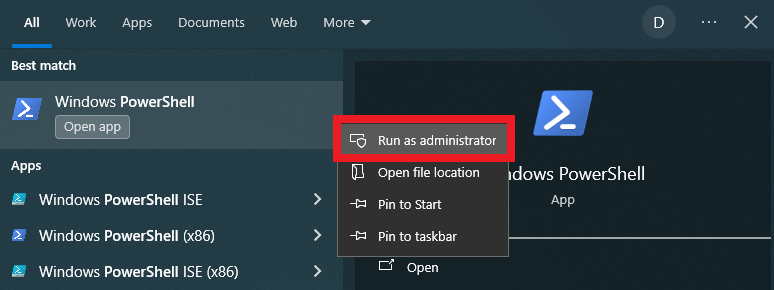
2. To make sure that you will be able to execute the commands described in the following sections, check the version of the PowerShell. Open PowerShell and enter one of the two following commands.
$PSVersionTable.PSVersion
$host.Version.

The PowerShell application should have version 5.1 (Major: 5, Minor: 1) or higher. If it is lower, update PowerShell according to the instructions on the following page:
3. Installation of the MicrosoftTeams module is required to correctly configure the service. One by one, copy the following commands highlighted in blue, paste them into PowerShell and execute by pressing Enter.
Set-ExecutionPolicy RemoteSigned

Confirm the execution of the above command by selecting Y and pressing enter. Then execute the following commands.
Import-Module -Name MicrosoftTeams

Set-ExecutionPolicy Restricted

Confirm the execution of the above command by selecting Y and pressing enter.
4. Log in with a user account with administrator privileges in the tenant. The account with administrator privileges is the one used to create the new domain in the Adding a New Domain to the Microsoft 365 Administration Center instructions. Start with following command.
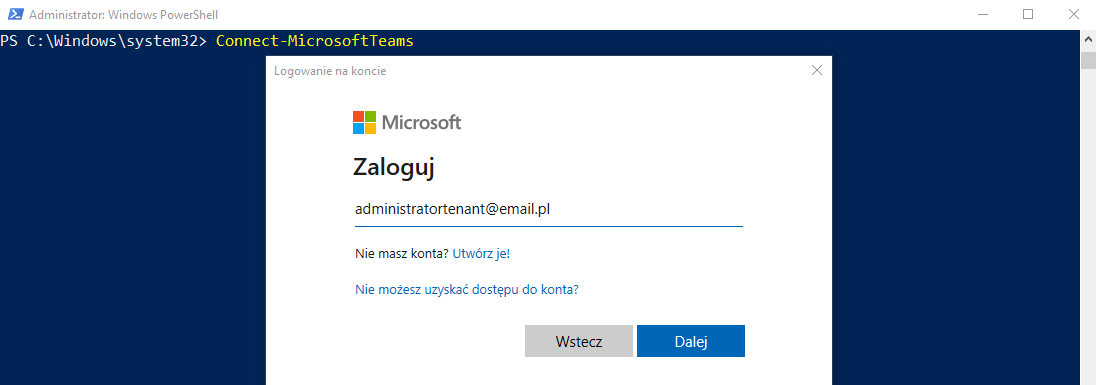
Connect-MicrosoftTeams
Enter e-mail address in the login window.
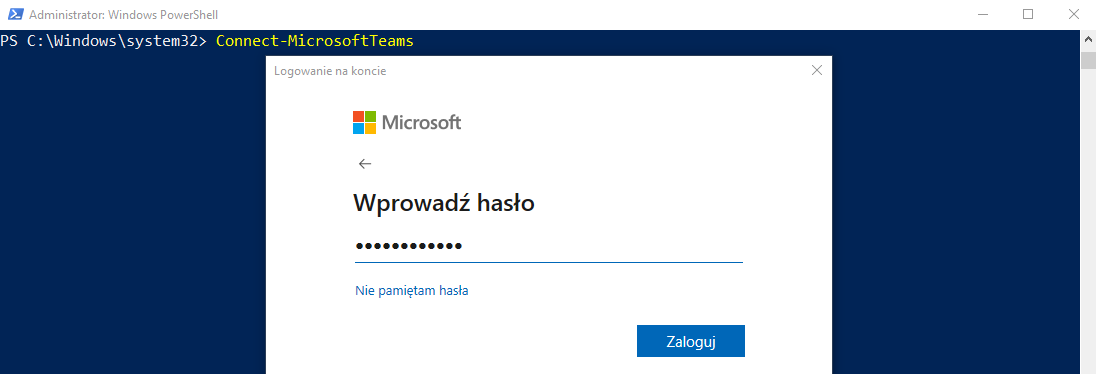
Next, enter your password.
Once you have successfully logged in, you will see your email address and tenant details.

5. The final step in configuring Numer w Teams service is connecting users to the phone numbers provided by T-Mobile. Assigning numbers to a specific user or multiple users is done using commands executed in PowerShell.
Single User Configuration
Run the following command, changing uzytkownik@domenafirmowa.pl to the username of the user who should be assigned the phone number provided by T-Mobile, which you should insert in place of +48000000000.
Set-CsPhoneNumberAssignment -Identity uzytkownik@domenafirmowa.pl -PhoneNumber +48000000000 -PhoneNumberType DirectRouting
Multiple Users Configuration
To configure multiple users at once , prepare a CSV file (comma-separated value text file) containing the user names and phone numbers you want to assign to them. The file should be created according to the format below.
Email,Phone
uzytkownika@domenafirmowa.pl,+48000000000
uzytkownika@domenafirmowa.pl,+48000000000
uzytkownika@domenafirmowa.pl,+48000000000
Replace uzytkownik@domenafirmowa.pl with the actual usernames of the users you want to assign phone numbers to. Replace +48000000000 with the corresponding T-Mobile phone numbers. Add more rows to the file following the same format for each additional user you want to configure.
Finished file should look like this:
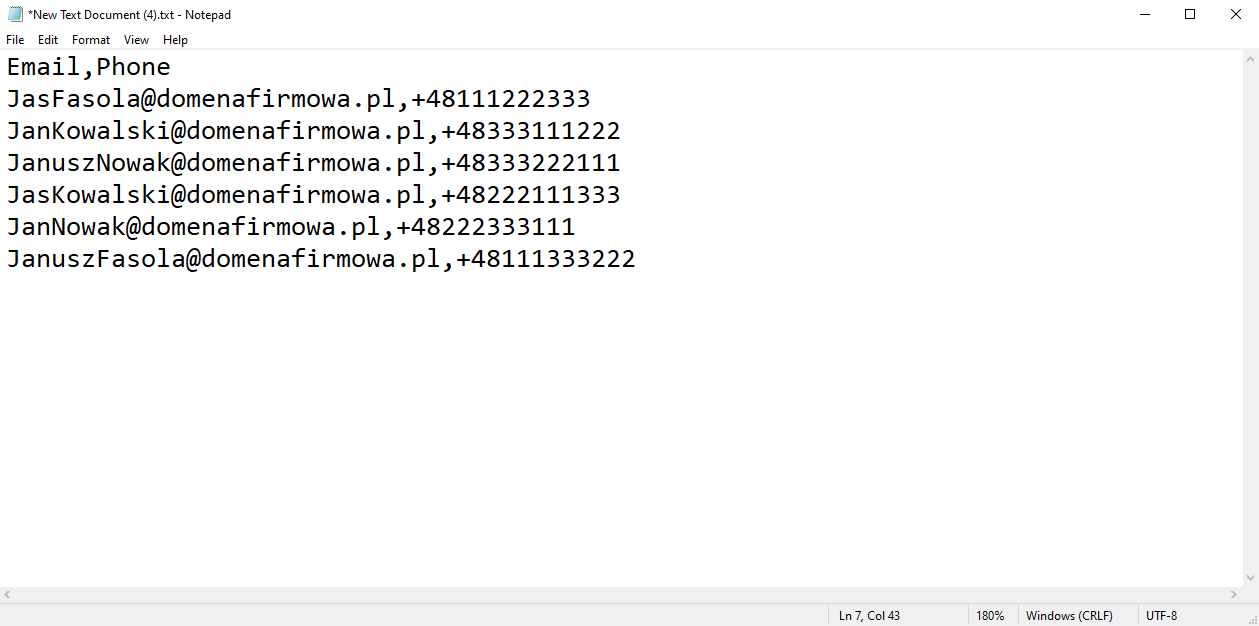
Before saving the file, make sure that the phone numbers have the correct format. The number should start with a "+" sign followed by 11 digits, starting with 48. An example number is: +48123456789.
Save the file with the name Voice.CSV (Voice is the filename and CSV is the file extension).
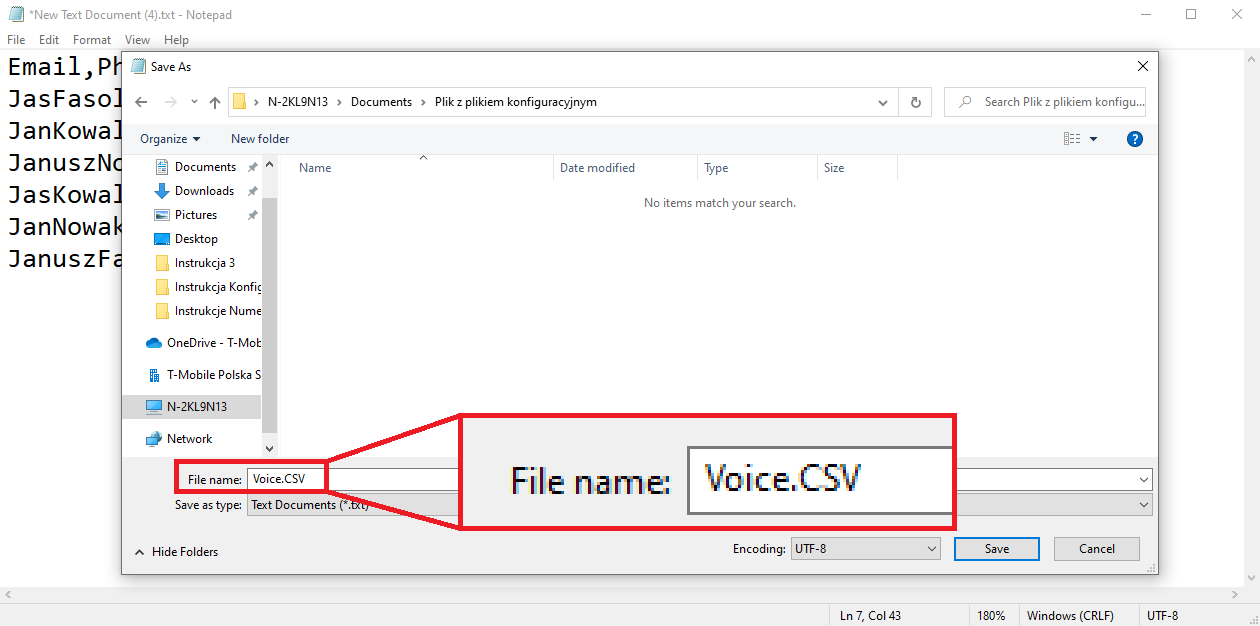
Next, open the file location, right-click on the file, select Properties and copy the file location.
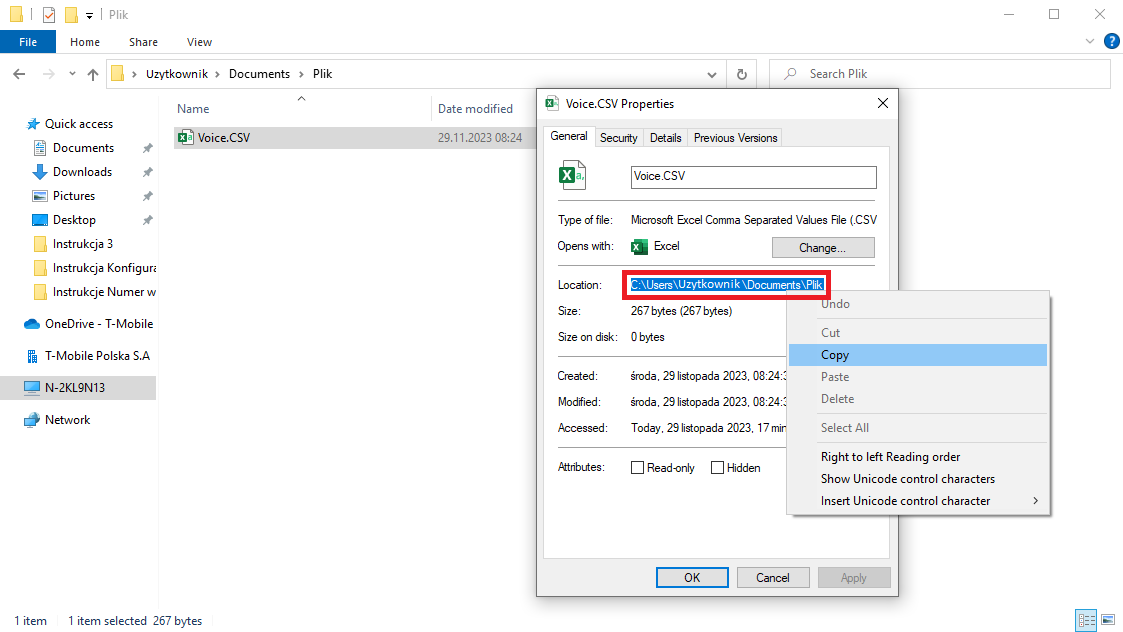
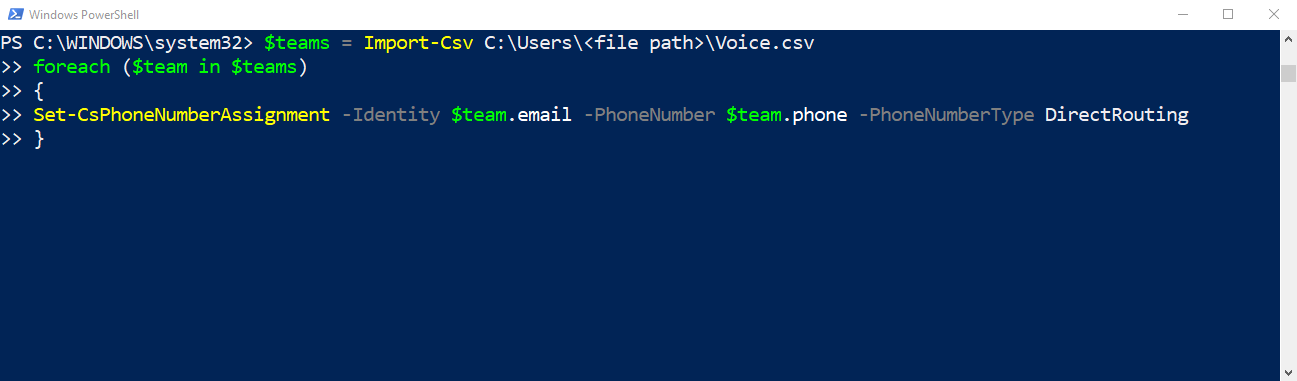
In the following command, replace C:\Users\<file path> with the value you copied earlier. Then, execute it in PowerShell.
$teams = Import-Csv C:\Users\<file path>\Voice.csv
foreach ($team in $teams)
{
Set-CsPhoneNumberAssignment -Identity $team.email -PhoneNumber $team.phone -PhoneNumberType DirectRouting
}
Once the configuration is complete, it is possible to make phone calls in the MS Teams application. To do this, log into the account of a user to whom you have assigned a phone number and who has a license with the Teams Phone add-on.
Changing the number assigned to a user in the Numer w Teams service
Disconnecting a number and assigning it to a new user in the Numer w Teams service.
2. To make sure that you will be able to execute the commands described in the following sections, check the version of the PowerShell. Open PowerShell and enter one of the two following commands.
$PSVersionTable.PSVersion
$host.Version.
Aplikacja PowerShell powinna mieć wersję 5.1 (Major: 5, Minor: 1) lub wyższą. Jeżeli jest niższa, zaktualizuj ją zgodnie z instrukcją z poniższej strony:
3. Installation of the MicrosoftTeams module is required to correctly configure the service. One by one, copy the following commands highlighted in blue, paste them into PowerShell and execute by pressing Enter.
Set-ExecutionPolicy RemoteSigned
Confirm the execution of the above command by selecting Y and pressing enter. Then execute the following commands.
Import-Module -Name MicrosoftTeams
Set-ExecutionPolicy Restricted
Confirm the execution of the above command by selecting Y and pressing enter.
4. Log in with a user account with administrator privileges in the tenant. The account with administrator privileges is the one used to create the new domain in the Adding a New Domain to the Microsoft 365 Administration Center instructions. Start with following command.
Connect-MicrosoftTeams
Enter e-mail address in the login window.
Next, enter your password.
Once you have successfully logged in, you will see your email address and tenant details.
5. Disconnect the number and the user by executing the following command. Change uzytkownik@domenafirmowa.pl to the username of the user who should be disconnected from the phone number provided by T-Mobile, which you should insert in place of +48000000000.
Remove-CsPhoneNumberAssignment -Identity uzytkownik@domenafirmowa.pl -PhoneNumber +48000000000 -PhoneNumberType DirectRouting
6. The final step in configuring Numer w Teams service is connecting users to the phone numbers provided by T-Mobile.
Run the following command, changing uzytkownik@domenafirmowa.pl to the username of the user who should be assigned the phone number provided by T-Mobile, which you should insert in place of +48000000000.
Set-CsPhoneNumberAssignment -Identity uzytkownik@domenafirmowa.pl -PhoneNumber +48000000000 -PhoneNumberType DirectRouting
Once the configuration is complete, it is possible to make phone calls in the MS Teams application. To do this, log into the account of a user to whom you have assigned a phone number and who has a license with the Teams Phone add-on.